1.) A sample e-mail below will be sent to the participants when the presentor creates an invite.
2.) The participants must click on the “Please click here to join this meeting” to join, then the screen below will be opened in another window after clicking join. Enter full name, enter e-mail, then click join meeting.
3.) Messages will appear on a new screen, like connecting, testing your upload speed, testing your download speed. Until it displays click here to continue.
4.) After clicking continue, this screen will show up. Then Click use my computer.
5.) Below screen will show up. Click got it, thanks.
6.) You will be brought into this screen where you can already view what's the presentor will be sharing.
Note that the participant will only see CAM, MIC(presentor can have this muted or unmuted) and My Mood, the participant can use this to raise hand, say yes or no. The presentor can also see these three buttons plus an added button of SHARE)
7.) Once the presentor started to share, the participants will already see the application (word doc, pdf, etc..) being shared by the presentor. Below is an example.
The participant can click the MAXIMIZE to see a bigger screen (without the CHAT ), then can click on the MINIMIZE to bring the CHAT back on the left portion of the screen.
8.) Screen below will be displayed to participants screen when the presentor ends the meeting.
Showing posts with label webinar. Show all posts
Monday, April 29, 2013
Anymeeting Tutorial for Presentor
A webinar presentor needs a MIC, a webcam and a fast internet connection (1MBPS or higher).
1.) Go to anymeeting.com site:
2.) Scroll down to see the free sign in portion, where you can use either gmail or FB account to start a webinar.Click on the 200 attendees FREE sign up button to see the next screen below, where you can use your gmail or FB account to sign up.
3.) Use your Gmail account to signup and display below screen. Then click on the terms of service for initial entry and click Sign-up now.
4.) This will be the next screen that you will see. This screen is an example of signing up in anymeeting using gmail account.
5.) You can start a meeting immediately or schedule a meeting. This is an example of screen after clicking Start a meeting now. The presentor entered the title, email address of participants invited, and a message. When the start meeting is clicked, anymeeting will send a notification email to the participants. (For the participants tutorial, click this link for steps and screens that will be displayed if you are participating in the webinar)
6.) Below is the presentor's screen. Following Share functions can be used when presentation is started:
6.1.) share things directly from computer screen
6.2.) share youtube videos
6.3.) share pdf/powerpoint docs by uploading them in the meeting for anyone to see
6.4.) run a poll for the audience.
Note that you need to install some java plugins for the share functions to run. You will be notified to install this during the initial run of being a presentor. The next time you won’t anymore worry for a missing java plugins in your computer.
7.) After clicking Listen Only Mode, a new screen will be displayed. Select an application to share
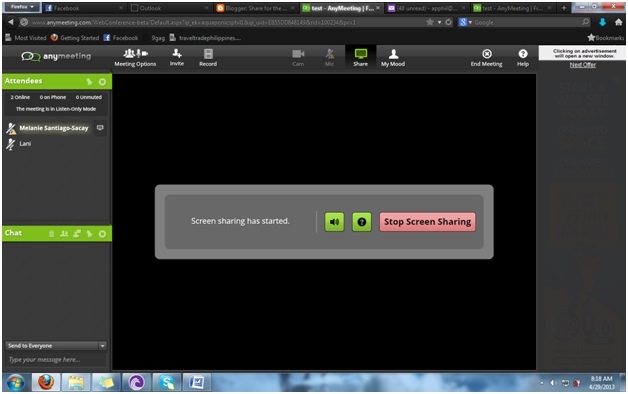
8.) Screen sharing starts. How fast you can share depends on the speed of your internet connection. The presentor then can go to the application (ex. word document) and scroll through the document while explaining it with the audience. The same document will then be visible to all participants. Presentor should ensure that MIC is on while talking. He can get the participants response by letting them press the YES button on their screen to ensure they all hear/see what the presentor is saying/ sharing.
9.) To end the meeting, CLICK on the End Meeting button on the top right most part of the screen. And then clicking Yes, end the meeting now.
1.) Go to anymeeting.com site:
2.) Scroll down to see the free sign in portion, where you can use either gmail or FB account to start a webinar.Click on the 200 attendees FREE sign up button to see the next screen below, where you can use your gmail or FB account to sign up.
3.) Use your Gmail account to signup and display below screen. Then click on the terms of service for initial entry and click Sign-up now.
4.) This will be the next screen that you will see. This screen is an example of signing up in anymeeting using gmail account.
5.) You can start a meeting immediately or schedule a meeting. This is an example of screen after clicking Start a meeting now. The presentor entered the title, email address of participants invited, and a message. When the start meeting is clicked, anymeeting will send a notification email to the participants. (For the participants tutorial, click this link for steps and screens that will be displayed if you are participating in the webinar)
6.) Below is the presentor's screen. Following Share functions can be used when presentation is started:
6.1.) share things directly from computer screen
6.2.) share youtube videos
6.3.) share pdf/powerpoint docs by uploading them in the meeting for anyone to see
6.4.) run a poll for the audience.
Note that you need to install some java plugins for the share functions to run. You will be notified to install this during the initial run of being a presentor. The next time you won’t anymore worry for a missing java plugins in your computer.
7.) After clicking Listen Only Mode, a new screen will be displayed. Select an application to share
8.) Screen sharing starts. How fast you can share depends on the speed of your internet connection. The presentor then can go to the application (ex. word document) and scroll through the document while explaining it with the audience. The same document will then be visible to all participants. Presentor should ensure that MIC is on while talking. He can get the participants response by letting them press the YES button on their screen to ensure they all hear/see what the presentor is saying/ sharing.
9.) To end the meeting, CLICK on the End Meeting button on the top right most part of the screen. And then clicking Yes, end the meeting now.
Subscribe to:
Posts (Atom)